
What Actually Happens When You Type a URL (Part 1: Getting the HTML)
You type example.com, hit Enter, and about 300 milliseconds later a page shows up. It feels instant. It isn't — it's a relay race with a dozen runners, most of whom you've never thought about.
This post follows that race from the moment you press Enter until the HTML bytes land back in your browser. That's where we stop. Turning those bytes into pixels on screen — parsing, the DOM, layout, painting — is its own story, and it's Part 2. Here we just get the HTML home.
It's written for engineers, in plain language. Every new term gets one sentence of explanation before we lean on it. Here's the whole journey before we zoom in:
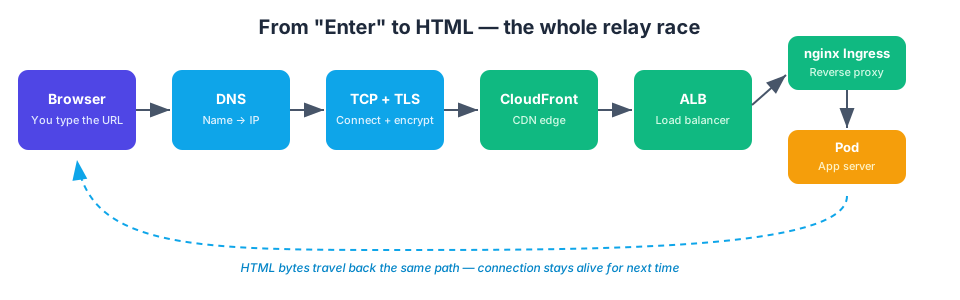
Let's walk it.
1. Before anything touches the network
The instant you hit Enter, the browser does four things entirely on your own machine — no packets yet.
Is this a URL or a search? The browser looks at what you typed. example (one word, no dot) gets handed to your default search engine as a query. example.com looks like a hostname, so it's treated as a URL. That's the whole reason typing a single word into the address bar just googles it.
Parse the URL. It's split into pieces: the scheme (https), the host (example.com), the port (defaults to 443 for HTTPS), the path, and any query string.
Check HSTS. HSTS — HTTP Strict Transport Security — is a way for a site to tell browsers "only ever talk to me over HTTPS, never plain HTTP." Browsers keep a list of these sites (plus a big list preloaded into the browser itself). If your host is on it, the browser rewrites http:// to https:// before sending anything. This kills the classic downgrade attack, where someone intercepts your first insecure request before it gets redirected.
Check caches. Before bothering anyone, the browser checks its own DNS cache, then the OS cache, then the hosts file. If you visited this site ten seconds ago, the IP is probably still sitting there and the next step gets skipped entirely. The browser might even already have an open connection it can reuse.
Assuming nothing's cached, we need to find the server.
2. Finding the server: DNS
A URL has a name; the network needs a number. DNS — the Domain Name System — is the phone book that turns example.com into an IP address like 93.184.216.34.
Here's the part most people black-box. Your computer asks one question — "what's the IP for example.com?" — to a recursive resolver (usually your ISP's, or something like 8.8.8.8). Your browser does not go wandering around the internet itself. The resolver does all the legwork on your behalf:
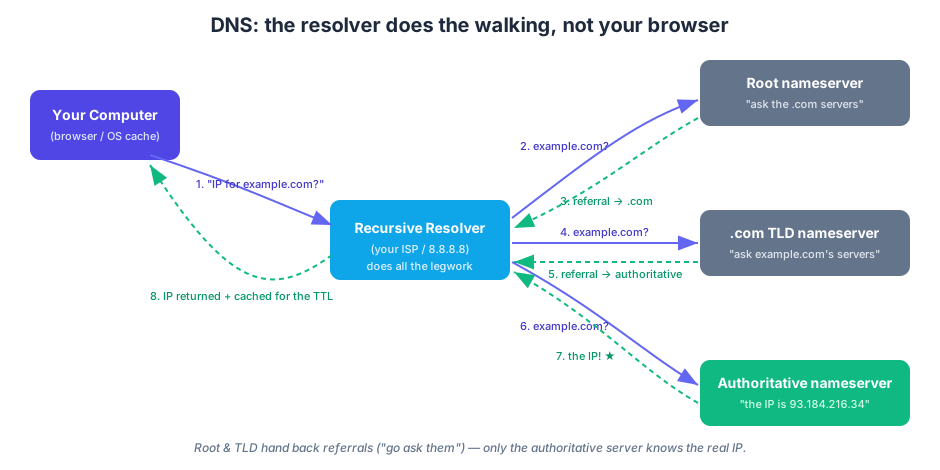
- It asks a root nameserver. The root doesn't know
example.com's IP. It replies: "No idea, but the.comservers do — here they are." That's a referral, not an answer. - It asks a
.comTLD nameserver (TLD = top-level domain, like.com,.org, or.io). Still doesn't know the IP. Another referral: "Askexample.com's authoritative servers — here they are." - It asks the authoritative nameserver for
example.com. This one holds the actual record and hands back the real IP.
The resolver caches that answer for a while — the record's TTL, or time-to-live — and returns it to you. Next time, it answers instantly from cache, which is why you don't pay for the full root → TLD → authoritative walk on every request.
Three things worth burning in:
- The resolver walks the hierarchy, not your browser.
- Root and TLD servers return referrals, not the final IP. Only the authoritative server knows it.
- Two people can get different IPs for the same name. With a CDN, the authoritative answer points you at the nearest edge server, so someone in Tokyo and someone in Berlin get routed to different machines. TTL also controls how fast a company can move traffic to a new server: short TTL means clients re-resolve often and changes take effect quickly; long TTL means fewer lookups but slow, stale changes.
Now we have an IP. Time to connect.
3. Opening the connection: TCP, then TLS
Two handshakes happen here, in order, and it helps to keep them separate in your head.
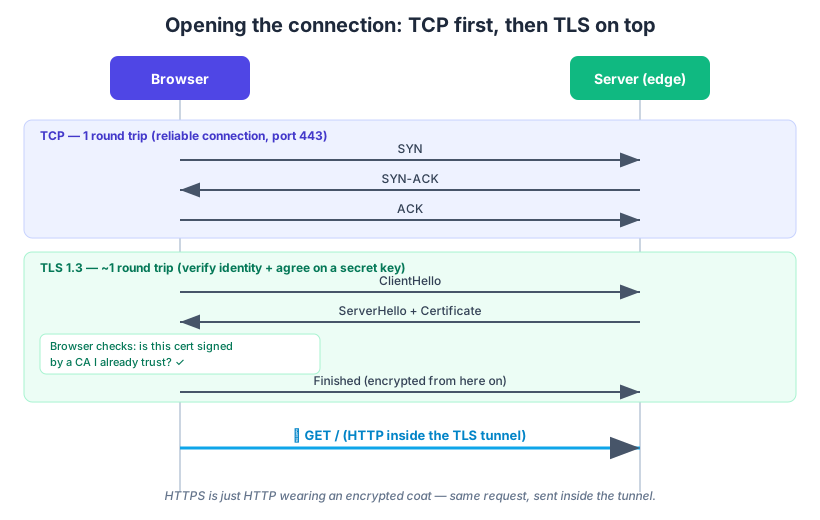
TCP first — the Transmission Control Protocol — gives us a reliable connection over which bytes arrive in order. It's a three-way handshake on port 443: your browser sends SYN, the server replies SYN-ACK, your browser sends ACK. One round trip, and now there's a pipe.
TLS second, layered on top of that pipe. TLS — Transport Layer Security — does two jobs: it proves the server is who it claims to be, and it agrees on a secret key so everything after is encrypted. In TLS 1.3 this is about one more round trip. The server presents its certificate, and your browser checks a specific thing: is this certificate signed by a Certificate Authority (CA) I already trust?
That last point is the one people get wrong. The certificate isn't "SSL," and its authority doesn't come from your hosting provider. SSL/TLS is the protocol; the thing the server hands over is a TLS certificate, and it's signed by a CA — Let's Encrypt, DigiCert, Amazon, and so on. Your browser and OS ship with a built-in list of trusted CAs. If the certificate's signature chains up to one of them, and it's unexpired and matches the domain, the browser trusts it. If a server just invents a certificate, the signature won't chain to anyone trusted, and you get the big red warning. The CA's signature is the hard-to-forge part — that's the whole point.
And to clear up a common confusion: HTTPS is not a separate protocol from HTTP. It's the exact same HTTP, just sent inside the TLS tunnel. Same request, encrypted coat.
4. The request leaves
With the tunnel up, the browser finally sends the thing it came to send:
GET / HTTP/2
Host: example.com
Short section on purpose — this is just a normal HTTP request. The only notable part is that it's riding inside the encrypted TLS tunnel, so anyone watching the wire sees scrambled bytes, not GET /.
5. Through the server maze
This is where "the server" turns out to be a whole neighbourhood. In a realistic AWS + Kubernetes setup, your request passes through several boxes, each with one job.
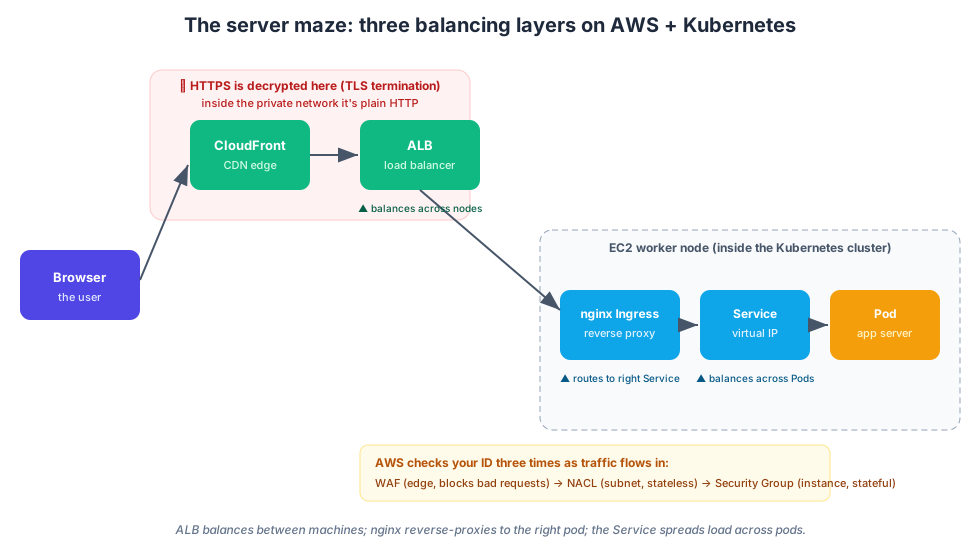
CloudFront (the CDN). First stop. CloudFront is just AWS's CDN — on another stack you'd see the same role filled by Cloudflare, Fastly, Google Cloud CDN, Azure Front Door, or Akamai. The names change; the job doesn't. A CDN keeps copies of your content at edge locations around the world. For static assets — CSS, JavaScript, images, fonts, the stuff that's identical for everyone — CloudFront serves them straight from the edge, close to the user, and your origin never hears about it. Dynamic HTML (different per user or session) usually isn't cacheable, so CloudFront forwards that request on to the origin. What decides which is which? The cache headers (Cache-Control, ETag) your origin sends — they're the control signal telling the CDN what it's allowed to keep. A CDN wins big on static-asset latency and on absorbing traffic spikes; it can't do much for uncacheable per-user responses, which still round-trip to the origin.
ALB (the load balancer). The Application Load Balancer is AWS's managed front door (GCP has its Cloud Load Balancer, Azure its Load Balancer / Application Gateway — same role). It spreads incoming traffic across the many EC2 machines running your app, routes by host/path, and runs health checks so dead machines stop getting traffic. This is balancing layer one: across machines.
Where does the encryption end? Here's a detail that surprises people: the TLS tunnel usually terminates at the edge — at CloudFront and/or the ALB. From there inward, across AWS's private network, it's often plain HTTP. So the certificate your browser validated back in step 3 was CloudFront's or the ALB's, not your application's. Decryption happens at the door; the private hallway inside is trusted.
AWS checks your ID three times. As traffic heads toward an EC2 worker node, AWS enforces security at up to three boundaries, outside-in:
- WAF (Web Application Firewall), optionally attached to CloudFront or the ALB, reads the actual HTTP request and blocks malicious patterns — SQL injection, XSS, bad bots — before they reach your compute.
- NACL (Network ACL) is a stateless firewall at the subnet boundary. Stateless means it checks inbound and outbound traffic separately — it doesn't remember it let your request in, so you must also explicitly allow the response back out.
- Security Group is a stateful firewall on the EC2 instance itself. Stateful means that because it let the request in, it automatically allows the matching response out — so you only write the inbound rule. Typically the node's security group allows traffic only from the ALB's security group, on the app's port.
nginx Ingress (the reverse proxy). Inside the Kubernetes cluster, nginx acts as the ingress controller — a reverse proxy that routes each request to the right place based on host and path. Quick definition: a forward proxy sits in front of clients and hides them (think a corporate outbound proxy — the website never sees the real user). A reverse proxy sits in front of servers and hides them — the client thinks it's talking to nginx, while nginx quietly forwards to whichever backend should answer. This is balancing layer two: routing to the right Service.
Service → Pod. A Kubernetes Service is a stable virtual IP that fronts a group of identical Pods (your running app containers). It spreads requests across them, so one pod dying or scaling up is invisible to everyone upstream. This is balancing layer three: across pods.
So there are three layers of balancing stacked up: the ALB across machines, the ingress across services, and the Service across pods. Each one exists so that the layer above never has to care about individual failures below it.
6. The app answers
The request finally reaches a pod running your application. In our simple case there's no database — the app just matches the route (say, GET /) to a handler and returns whatever that route serves: an HTML page.
(If the route returned JSON instead, this would be an API, and the browser's JavaScript would build the HTML later. That's Part 2 territory — here we're following the server-rendered-HTML path.)
The pod hands back an HTTP response: a status line (200 OK), some headers, and the HTML body.
7. The trip back
The response retraces the exact same path in reverse: Pod → Service → nginx ingress → ALB → CloudFront → your browser. On the way out, CloudFront may cache the response if its headers allow, so the next visitor gets it from the edge.
And the connection you spent all that effort setting up? It normally stays open — HTTP keep-alive, and with HTTP/2 a single connection is even reused for many requests at once. That's the payoff for the handshake cost: your next request to this site skips DNS, TCP, and TLS entirely and goes straight to sending the request.
The whole journey, in one breath
- The browser parses the URL, applies HSTS, and checks its caches.
- DNS turns the name into an IP — your resolver walks root → TLD → authoritative, and caches the result.
- TCP opens a reliable connection; TLS layers encryption on top and verifies the server's certificate against a trusted CA.
- The browser sends an HTTP request inside the encrypted tunnel.
- CloudFront → ALB → nginx ingress → Service → Pod carries it in, with TLS terminating at the edge and AWS firewalling it along the way.
- The app matches the route and returns HTML.
- The HTML retraces the path home, and the connection stays warm for next time.
All of that, and we still only have bytes of HTML sitting in the browser. Turning those bytes into the page you actually see — parsing, the DOM and CSSOM, layout, paint, and JavaScript — is where the browser earns its keep.
That's Part 2. See you there.